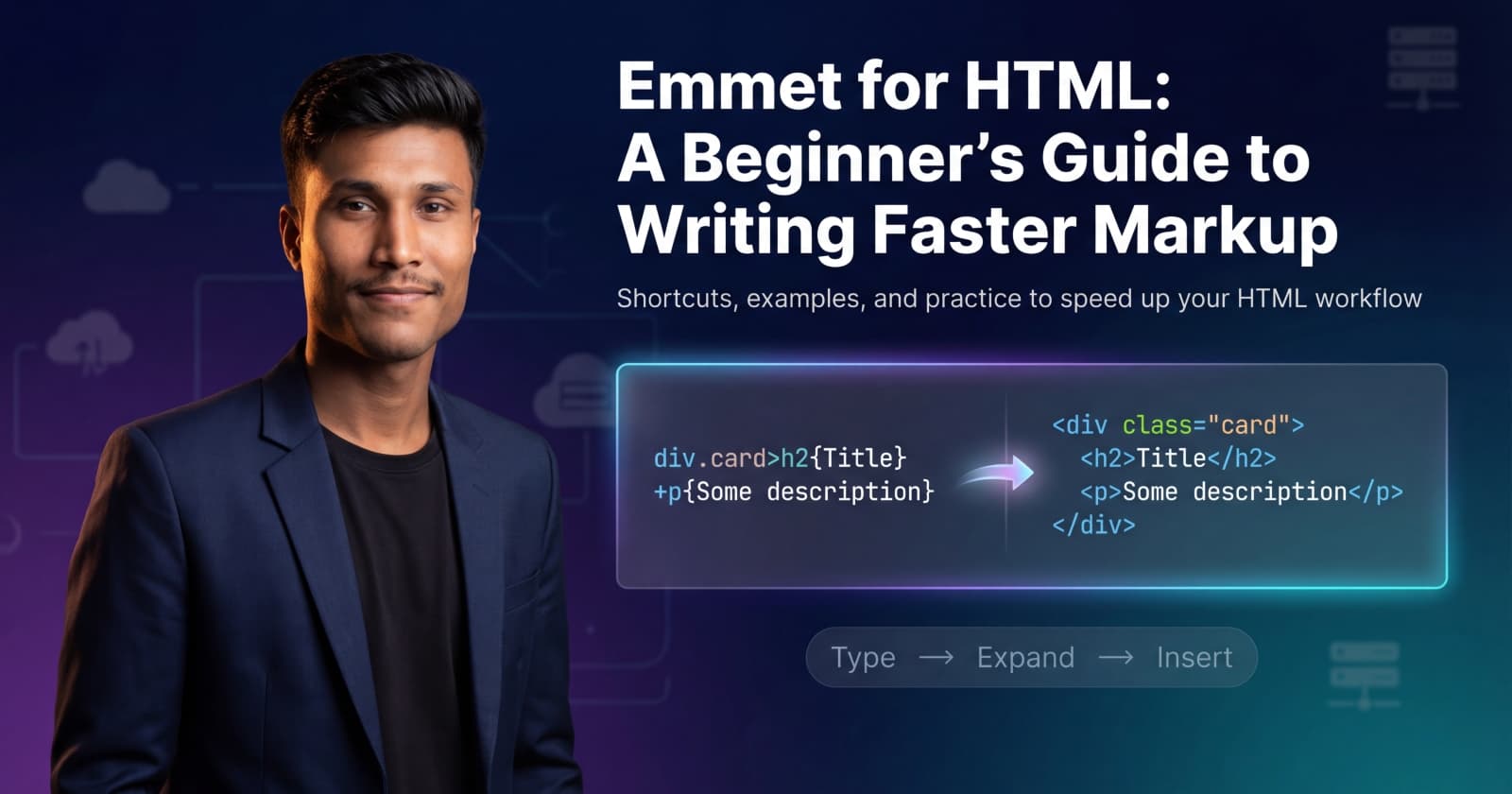
Emmet for HTML: A Beginner’s Guide to Writing Faster Markup
Search for a command to run...
No comments yet. Be the first to comment.
You are on a flight. Airplane mode is on. You text your friend. The app doesn't crash. It shows a clock icon. Later, you land. The message sends. How? Internet is unreliable. Tunnels, elevators, bad c
Direct DOM manipulation is slow. Updating the screen directly forces the browser to recalculate layouts and repaint pixels. Do this too often, your app lags. React solves this. How? The Virtual DOM. T
Building a todo app is easy. Building Instagram is hard. The difference isn't the code. It's the architecture. Let's look at how massive mobile apps scale using React Native and Expo Router. No fluff.
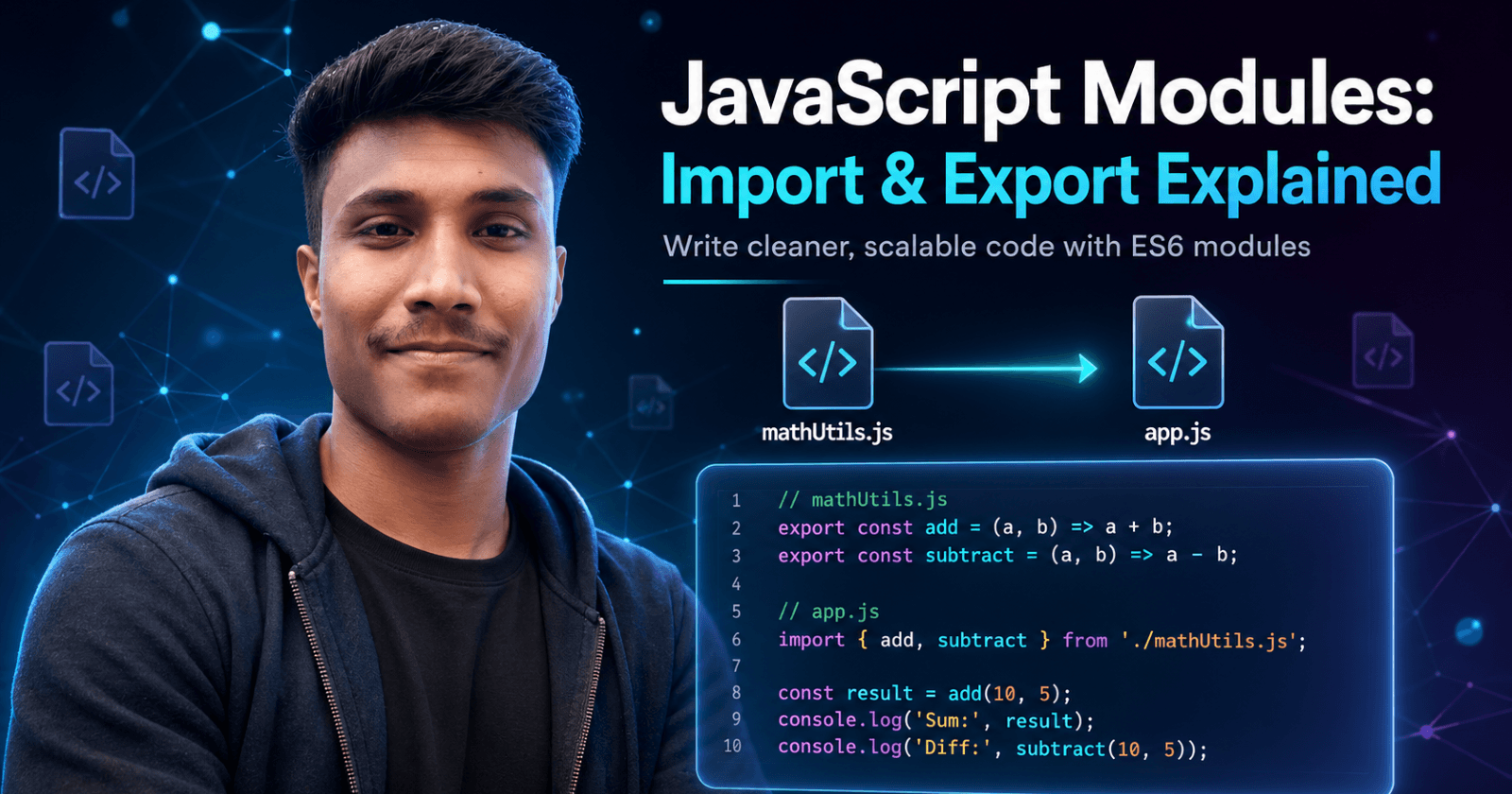
How to organize your code like a pro using ES6 modules The Problem: Why One Giant File Doesn’t Scale When you first start learning JavaScript, it’s tempting to put everything in a single app.js file.
Introduction: The Sync vs. Async Reality Check Imagine you're building a web server that needs to read a file from disk. In a traditional, synchronous world, your code would look something like this:

If you’re learning HTML and feel like you’re typing the same tags again and again… you’re not wrong. Writing markup manually can feel slow, repetitive, and honestly a bit boring.
Good news: Emmet exists to save your fingers and your time.
By the end of this guide, you’ll be able to write HTML structures in seconds using short, powerful abbreviations.
Emmet is a shortcut language for writing HTML faster
You type a short pattern → Emmet expands it into full HTML
It works inside most code editors (VS Code recommended)
It’s beginner-friendly and incredibly useful for daily HTML work
Let’s say you want to write this:
<div class="card">
  <h2>Title</h2>
  <p>Some description here.</p>
</div>
You type every tag. Every bracket. Every closing tag. Carefully. Slowly.
Now look at this:
div.card>h2{Title}+p{Some description here.}
Press Tab… and BOOM - the full HTML appears.
That magic is Emmet.
Emmet is a shorthand language that expands into HTML.
Think of it like:
Autocomplete for HTML structures
A shortcut system for writing markup
A “text expansion” tool made for developers
You type a small instruction → Emmet generates the full code.
Emmet is not just for pros. It’s actually amazing for beginners because:
You write less → fewer typos
You learn HTML structure faster
You focus on layout instead of repetitive typing
You build projects faster (which means more practice)
Emmet doesn’t replace learning HTML — it reinforces it.
Most modern editors already support Emmet:
VS Code (built-in)
Sublime Text
WebStorm
Atom (with plugin)
If nothing happens when you press Tab:
Make sure the file is .html
Make sure Emmet is enabled in the editor
Here are the building blocks of Emmet:
| Symbol | Meaning | Example |
> | Child element | div>p |
+ | Sibling element | h1+p |
* | Repeat element | li*3 |
. | Class | div.card |
# | ID | div#main |
{} | Text inside element | p{Hello} |
[] | Attributes | input[type=text] |
Emmet:
p
Output:
<p></p>
Emmet:
h1
Output:
<h1></h1>
Simple rule: Type the tag name → press Tab.
.)Emmet:
div.container
Output:
<div class="container"></div>
#)Emmet:
section#hero
Output:
<section id="hero"></section>
[])Emmet:
input[type=email]
Output:
<input type="email">
You can combine everything:
input#email.input-field[type=email]
>)The > symbol means inside.
Emmet:
div>h1+p
Output:
<div>
  <h1></h1>
  <p></p>
</div>
+)The + means next to each other.
Emmet:
h1+p+button
Output:
<h1></h1>
<p></p>
<button></button>
*)Need multiple items? Use *.
Emmet:
li*3
Output:
<li></li>
<li></li>
<li></li>
Combine with nesting:
ul>li*3
<ul>
  <li></li>
  <li></li>
  <li></li>
</ul>
{})You can place text directly inside tags.
Emmet:
p{Hello World}
Output:
<p>Hello World</p>
With nesting:
div>h2{Title}+p{Description}
This is one of Emmet’s best features.
Emmet:
!
Press Tab and you get:
<!DOCTYPE html>
<html lang="en">
<head>
    <meta charset="UTF-8">
    <meta name="viewport" content="width=device-width, initial-scale=1.0">
    <title>Document</title>
</head>
<body>

</body>
</html>
Instant HTML starter template.
nav>ul>li*4>a
div.card>img+h3+p+button
form>label+input[type=text]+button{Submit}
These are patterns you’ll use again and again in real projects.
❌ Forgetting to press Tab to expand
❌ Trying Emmet in a .txt file instead of .html
❌ Using advanced syntax too early
❌ Not understanding the HTML structure Emmet generates
Emmet is a helper — you still need to understand the HTML it creates.
Try typing these yourself:
Create a div with class container containing an h1 and a paragraph
Create an unordered list with 5 list items
Create a form with an email input and a submit button
Create a section with id about containing an h2 and two paragraphs
(Expand them using Emmet!)
Use Tab to expand abbreviations
If it doesn’t expand, press Ctrl + Space to trigger suggestions
Make sure the file type is HTML
Emmet is optional — but once you start using it, going back to manual HTML feels painfully slow.
Start small:
Use it for lists
Use it for layouts
Use it for boilerplate
Soon, your fingers will type Emmet automatically — and your HTML speed will level up big time.
div.class
div#id
parent>child
sibling+next
li*5
p{Text}
input[type=text]
!
Keep this nearby while practicing.