Inside Git: How It Works and the Role of the .git Folder
Introduction
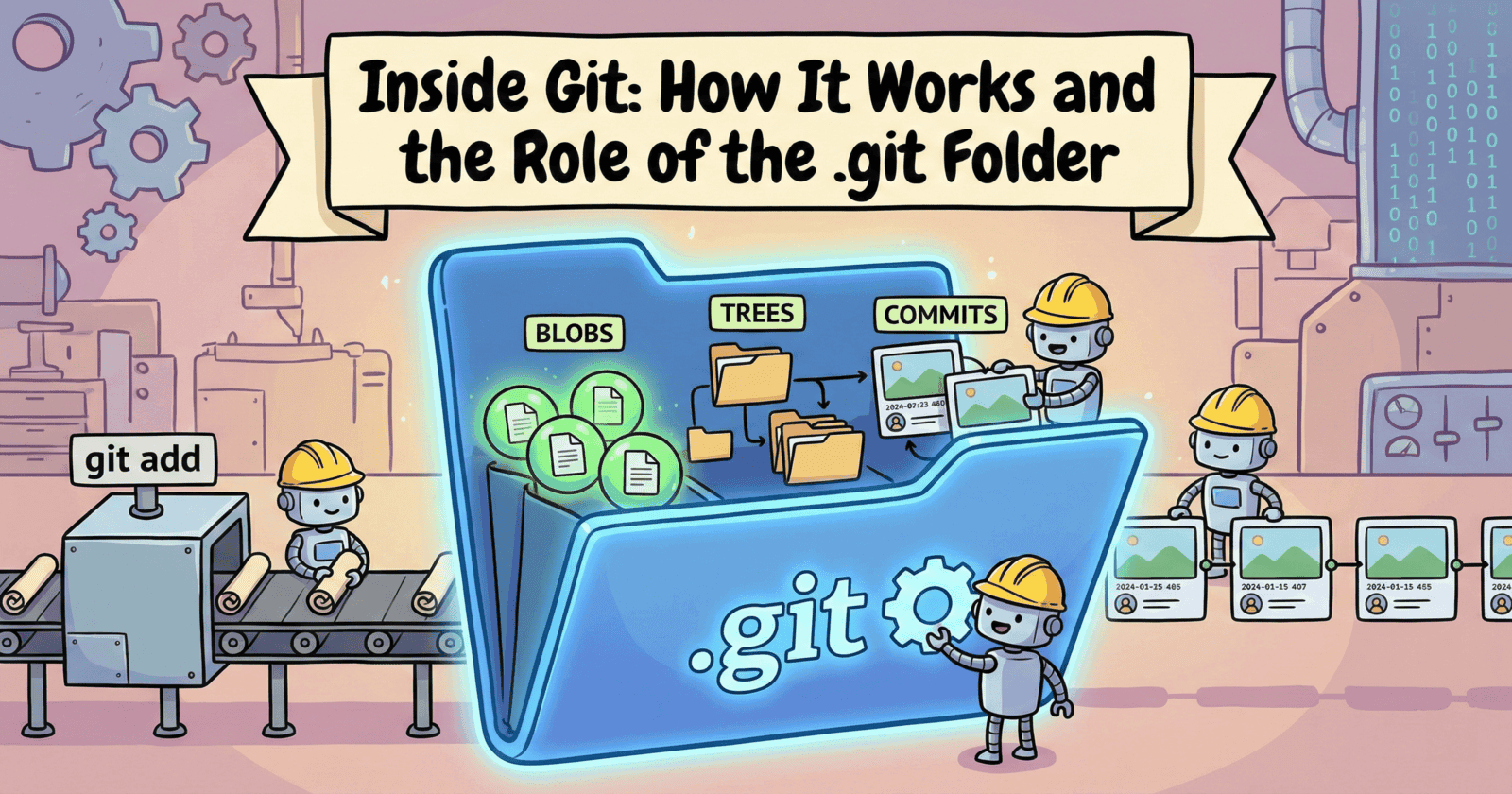
Imagine you're building a house. At each step, you take a photo. If something goes wrong, you can look back and see exactly what changed.
That's what Git does for your code.
Most developers use Git daily but don't know what's happening behind the scenes. In this blog, we'll follow a simple story: you create a file, make changes, and commit them. By the end, you'll understand:
What the
.gitfolder containsHow Git stores code using objects (blobs, trees, commits)
How Git tracks changes
Why Git uses hashes
How
git addandgit commitwork
Let's start.
What is the .git Folder?
The Hidden Folder That Holds Everything
When you run git init, Git creates a hidden folder called .git. This folder is the heart of Git—everything about your project lives here.
Think of .git as a filing cabinet. Git organizes your code in a very specific way inside it.
Let's say you create a simple project:
my-project/
├── .git/          (Git's filing cabinet - hidden)
└── hello.txt      (Your file)
When you look inside .git, you'll see something like this:
.git/
├── objects/       (Where Git stores all your code snapshots)
├── refs/          (Pointers to commits)
├── HEAD           (Points to your current branch)
├── config         (Project settings)
├── hooks/         (Scripts that run at certain times)
└── index          (Staging area - we'll talk about this)
Our Story Begins
Let's follow a simple example throughout this blog. You're creating a file called story.txt:
story.txt (initial content):
"Once upon a time..."
You run:
git init
git add story.txt
git commit -m "Start the story"
When you do this, Git creates entries in the .git folder. But what exactly? That's what we're about to discover.
Git Objects Explained
The Three Types of Objects
Git stores everything using three types of objects. Think of them as building blocks:
Blob - A snapshot of a file's content
Tree - A folder structure (which files exist and their names)
Commit - A snapshot in time (who made changes, when, and why)
Blob: Your File's Content
A blob is your file's content. When you create story.txt with "Once upon a time...", Git creates a blob containing that text.
Git doesn't store the filename with the blob—only the content. The filename is stored separately in a tree.
Blob for story.txt:
Content: "Once upon a time..."
Tree: The Folder Structure
A tree is like a folder. It says: "In this folder, there's a file called story.txt, and its content is in blob #abc123."
A tree is basically a list of files and their blob pointers.
Commit: The Snapshot in Time
A commit is a snapshot. It says: "At this moment, the project looked like tree #xyz789. This was done by John on Jan 14, 2026. The message was 'Start the story'."
A commit contains: a tree pointer, author info, timestamp, message, and a pointer to the previous commit.
Visualizing Our Story
When you commit story.txt with "Once upon a time...", here's what Git creates:
Blob:
├── Content: "Once upon a time..."
└── ID: a1b2c3d4e5f6...

Tree:
├── story.txt → a1b2c3d4e5f6
└── ID: x9y8z7w6v5u4...

Commit:
├── Tree: x9y8z7w6v5u4
├── Author: You
├── Date: Jan 14, 2026
├── Message: "Start the story"
└── ID: m1n2o3p4q5r6...
How Git Tracks Changes
The Chain of Commits
When you make a second commit, Git doesn't create a new copy of everything. It creates a new commit that points to the previous one.
Let's continue our story. You edit story.txt:
story.txt (updated content):
"Once upon a time... there was a developer."
You run:
git add story.txt
git commit -m "Add more to the story"
Now Git creates:
New Blob:
├── Content: "Once upon a time... there was a developer."
└── ID: b2c3d4e5f6g7...

New Tree:
├── story.txt → b2c3d4e5f6g7
└── ID: y8z7w6v5u4t3...

New Commit:
├── Tree: y8z7w6v5u4t3
├── Author: You
├── Date: Jan 14, 2026 (later)
├── Message: "Add more to the story"
├── Parent: m1n2o3p4q5r6 (points to previous commit)
└── ID: n2o3p4q5r6s7...
The Chain Grows
Now you have a chain:
Commit 1 (m1n2o3p4q5r6)
├── Tree: x9y8z7w6v5u4
├── Message: "Start the story"
└── Parent: (none - this is the first commit)

Commit 2 (n2o3p4q5r6s7)
├── Tree: y8z7w6v5u4t3
├── Message: "Add more to the story"
└── Parent: m1n2o3p4q5r6 (points back to Commit 1)
This chain is your project's history. Each commit points to the one before it. If you want to see what your project looked like at any point, Git just follows the chain backwards.
Diagram: The Git History Chain
Inside git add and git commit
What Happens When You Run git add?
When you run git add story.txt, Git stages the file:
Git reads your file
Git creates a blob from the content
Git stores this blob in
.git/objects/Git updates
.git/index(staging area) to mark it ready for commit
The .git/index is like a to-do list for the next commit.
What Happens When You Run git commit?
When you run git commit -m "Add more to the story", Git:
Creates a tree from the staging area
Creates a commit pointing to this tree with your message and author info
Updates the branch pointer to point to this new commit
Clears the staging area to reflect the new state
Step-by-Step: Our Story Continues
Let's trace through our example:
Step 1: You edit the file
story.txt now contains:
"Once upon a time... there was a developer."
Step 2: You run git add story.txt
Git creates Blob 2:
├── Content: "Once upon a time... there was a developer."
├── ID: b2c3d4e5f6g7
└── Stored in: .git/objects/b2/c3d4e5f6g7

Git updates .git/index:
├── story.txt → b2c3d4e5f6g7 (ready to commit)
Step 3: You run git commit -m "Add more to the story"
Git creates Tree 2:
├── story.txt → b2c3d4e5f6g7
├── ID: y8z7w6v5u4t3
└── Stored in: .git/objects/y8/z7w6v5u4t3

Git creates Commit 2:
├── Tree: y8z7w6v5u4t3
├── Author: You <you@email.com>
├── Date: Jan 14, 2026 10:30 AM
├── Message: "Add more to the story"
├── Parent: m1n2o3p4q5r6 (previous commit)
├── ID: n2o3p4q5r6s7
└── Stored in: .git/objects/n2/o3p4q5r6s7

Git updates .git/refs/heads/main:
├── Points to: n2o3p4q5r6s7 (the new commit)
Diagram: The Flow of git add and git commit
How Git Uses Hashes
Why Hashes Matter
You've noticed those IDs like a1b2c3d4e5f6. Those are hashes. Git uses SHA-1 (or SHA-256 in newer versions).
The magic: the same content always produces the same hash.
Integrity: Git's Superpower
If someone tries to change your code secretly, Git detects it immediately:
The file's content changed
The hash of that content changed
The tree hash changed
The commit hash changed
The entire chain is broken
Hashes are like fingerprints—change one character, and the fingerprint changes completely.
Our Story: Hashes in Action
Let's see how hashes work in our example:
Commit 1:
Content: "Once upon a time..."
Blob Hash: a1b2c3d4e5f6 (SHA-1 of the content)

Tree Hash: x9y8z7w6v5u4 (SHA-1 of the tree structure)

Commit Hash: m1n2o3p4q5r6 (SHA-1 of commit info + tree hash)
Commit 2:
Content: "Once upon a time... there was a developer."
Blob Hash: b2c3d4e5f6g7 (different content = different hash)

Tree Hash: y8z7w6v5u4t3 (different blob = different tree hash)

Commit Hash: n2o3p4q5r6s7 (different tree + parent = different commit hash)
Diagram: How Hashes Create Integrity
Putting It Together: The Complete Story
From Start to Finish
Let's trace through our entire story one more time, seeing how everything connects:
Day 1: You start a project
mkdir my-story
cd my-story
git init
echo "Once upon a time..." > story.txt
git add story.txt
git commit -m "Start the story"
What Git does:
Creates
.git/folderCreates Blob 1 from "Once upon a time..."
Creates Tree 1 listing story.txt
Creates Commit 1 pointing to Tree 1
Updates
mainbranch to point to Commit 1
Day 2: You continue the story
echo "Once upon a time... there was a developer." > story.txt
git add story.txt
git commit -m "Add more to the story"
What Git does:
Creates Blob 2 from the new content
Creates Tree 2 listing story.txt (pointing to Blob 2)
Creates Commit 2 pointing to Tree 2 and Commit 1
Updates
mainbranch to point to Commit 2
Day 3: You check the history
git log
Git walks backwards through the chain:
- Commit 2 (current) → Commit 1 → (end)
The Complete Picture
┌─────────────────────────────────────────────────────────────┐
│                    Your .git Folder                         │
└─────────────────────────────────────────────────────────────┘

.git/objects/
├── a1/b2c3d4e5f6 (Blob 1: "Once upon a time...")
├── b2/c3d4e5f6g7 (Blob 2: "Once upon a time... there was...")
├── x9/y8z7w6v5u4 (Tree 1: {story.txt → a1b2c3d4e5f6})
├── y8/z7w6v5u4t3 (Tree 2: {story.txt → b2c3d4e5f6g7})
├── m1/n2o3p4q5r6 (Commit 1: tree x9y8z7w6v5u4, parent: none)
└── n2/o3p4q5r6s7 (Commit 2: tree y8z7w6v5u4t3, parent: m1n2o3p4q5r6)

.git/refs/heads/
└── main → n2o3p4q5r6s7 (points to latest commit)

.git/HEAD
└── ref: refs/heads/main (you're on the main branch)
Why This Matters
Now you understand:
Blobs store file content
Trees store folder structure
Commits store snapshots in time
Hashes ensure integrity
Chains create history
Branches are just pointers to commits
When you run git log, you're walking this chain. When you run git checkout, you're loading a specific tree. When you run git diff, you're comparing blobs. Everything makes sense now.
Conclusion
You Now Understand Git Internals
You started this blog not knowing what was inside the .git folder. Now you know:
Git stores everything as objects (blobs, trees, commits)
Each object has a unique hash based on its content
Commits form a chain, creating your project's history
git addstages changes,git commitcreates a snapshotHashes ensure that your code can't be secretly modified
The Mental Model
Think of Git like this:
Blob = A photo of a file
Tree = An album of photos
Commit = A diary entry with a date
Hash = A fingerprint
Branch = A bookmark
Next Steps
Now you can:
Use Git more confidently
Debug Git problems more easily
Understand why Git operations work the way they do
Appreciate why Git is so powerful
The next time you run git commit, remember: you're creating a blob, tree, and commit object. You're adding a link to the chain. You're creating a permanent record of your work.
That's the beauty of Git.
Key Takeaways
| Concept | What It Is | Why It Matters |
| Blob | File content snapshot | Stores your actual code |
| Tree | Folder structure | Tracks which files exist |
| Commit | Point in time | Creates history |
| Hash | Unique fingerprint | Ensures integrity |
| Chain | Linked commits | Creates timeline |
| .git | Git's database | Stores everything |
Happy coding, and now you know what's really happening under the hood!