Understanding HTML Tags and Elements
Search for a command to run...
No comments yet. Be the first to comment.
You are on a flight. Airplane mode is on. You text your friend. The app doesn't crash. It shows a clock icon. Later, you land. The message sends. How? Internet is unreliable. Tunnels, elevators, bad c
Direct DOM manipulation is slow. Updating the screen directly forces the browser to recalculate layouts and repaint pixels. Do this too often, your app lags. React solves this. How? The Virtual DOM. T
Building a todo app is easy. Building Instagram is hard. The difference isn't the code. It's the architecture. Let's look at how massive mobile apps scale using React Native and Expo Router. No fluff.
How to organize your code like a pro using ES6 modules The Problem: Why One Giant File Doesn’t Scale When you first start learning JavaScript, it’s tempting to put everything in a single app.js file.
Introduction: The Sync vs. Async Reality Check Imagine you're building a web server that needs to read a file from disk. In a traditional, synchronous world, your code would look something like this:

When you open a website, what you see looks beautiful and interactive. But behind every webpage is a simple structure that makes everything possible - HTML.
In this article, you’ll learn the core building blocks of HTML: tags, elements, and how content is structured on a webpage. If you're just starting web development, this is one of the most important foundations to get right.
HTML stands for HyperText Markup Language. It is not a programming language - it’s a markup language used to structure content on the web.
Think of HTML as the skeleton of a webpage.
HTML → Structure (what things are)
CSS → Style (how things look)
JavaScript → Behavior (how things act)
Without HTML, a browser wouldn’t know what is a heading, a paragraph, an image, or a button.
<h1>Welcome to My Website</h1>
<p>This is my first webpage.</p>
Here, HTML tells the browser:
This text is a heading
This text is a paragraph
An HTML tag is a keyword wrapped in angle brackets.
<tagname>
Tags tell the browser how to treat the content inside them.
<h1>
<p>
<div>
<span>
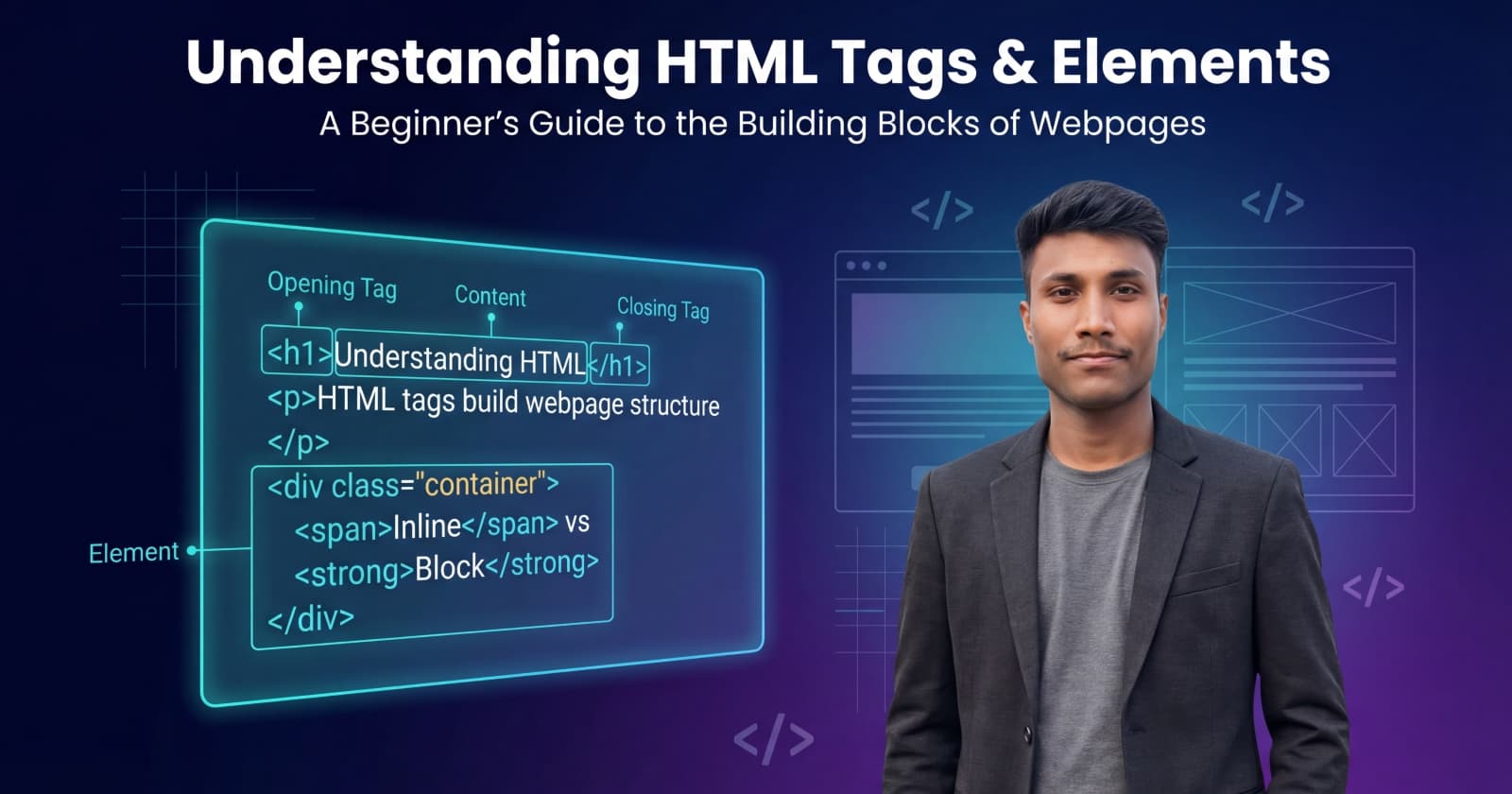
Tags usually come in pairs - an opening tag and a closing tag.
Most HTML elements follow this structure:
<opening tag> Content goes here </closing tag>
<p>This is a paragraph.</p>
<p> → Opening tag
This is a paragraph. → Content
</p> → Closing tag
The closing tag has a forward slash /.
<h1>My Portfolio</h1>
Here, the <h1> tag tells the browser this text is an important heading.
This is where beginners often get confused.
👉 Tag = Just the label 👉 Element = Opening tag + Content + Closing tag
<p>Hello World</p>
<p> → Opening tag
Hello World → Content
</p> → Closing tag
✅ All together = ONE paragraph element
Simple rule to remember: A tag is part of an element. An element is the whole thing.
Some HTML elements do not have content, so they don’t need closing tags. These are called void elements.
<img src="image.jpg" alt="Profile Photo">
<br>
<hr>
<input type="text">
These elements:
Do not wrap content
Do not have a closing tag like </img>
❌ Wrong:
<img></img>
✅ Correct:
<img src="photo.jpg" alt="A photo">
HTML elements behave differently when displayed on a webpage.
Take up the full width
Start on a new line
Examples:
<h1>
<p>
<div>
If you put two paragraphs:
<p>First paragraph</p>
<p>Second paragraph</p>
They appear one below the other.
Take up only as much width as needed
Stay on the same line
Examples:
<span>
<a>
<strong>
<p>This is <span>inline text</span> inside a paragraph.</p>
Inline elements are usually used inside block elements.
Here are some of the most important tags beginners should know:
| Tag | Purpose |
<h1> to <h6> | Headings |
<p> | Paragraph |
<a> | Link |
<img> | Image |
<div> | Container (block-level) |
<span> | Container (inline) |
<br> | Line break |
<hr> | Horizontal line |
<ul> | Unordered list |
<ol> | Ordered list |
<li> | List item |
Here’s a simple webpage snippet using many common HTML tags together:
<!DOCTYPE html>
<html>
  <head>
    <title>My First HTML Page</title>
  </head>
  <body>

    <h1>Welcome to My Website</h1>
    <h2>About Me</h2>

    <p>Hello! My name is Rith. I am learning web development.</p>

    <a href="https://example.com">Visit My Favorite Website</a>

    <br><br>

    <img src="profile.jpg" alt="My Profile Photo" width="150">

    <hr>

    <h2>My Hobbies</h2>
    <ul>
      <li>Coding</li>
      <li>Reading</li>
      <li>Gaming</li>
    </ul>

    <h2>Steps I Follow to Learn</h2>
    <ol>
      <li>Watch tutorials</li>
      <li>Practice coding</li>
      <li>Build small projects</li>
    </ol>

    <div>
      <p>This is inside a div container.</p>
      <span>This is a span (inline element).</span>
    </div>

  </body>
</html>
You should briefly explain to readers what they’re seeing:
<h1>–<h2> → Headings
<p> → Paragraph text
<a> → A clickable link
<img> → An image
<br> → Line break
<hr> → Horizontal line
<ul> + <li> → Bullet list
<ol> + <li> → Numbered list
<div> → Block container
<span> → Inline container
You don’t need to memorize all tags at once - just get comfortable with the common ones.
The best way to learn HTML is to see real websites from the inside.
Open any website
Right-click anywhere
Click Inspect
Go to the Elements tab
You’ll see the HTML structure of the page. Move your mouse over elements in the panel — the browser highlights them on the screen. This helps you understand:
How headings are used
How content is grouped
How tags build the page layout
This is how real developers learn every day.
HTML is the foundation of every webpage. By understanding:
What tags are
How elements are formed
The difference between block and inline elements
Which tags are commonly used
You now have the core knowledge needed to start building real webpages.
Next step? Try creating a small HTML page with headings, paragraphs, links, and images. Then open DevTools and inspect your own code like a pro.
Welcome to web development - this is where it all begins 🚀